Cart and Checkout
Access: Click the shopping cart icon in the top navigation header
This section is where you review your selected items and place an order.
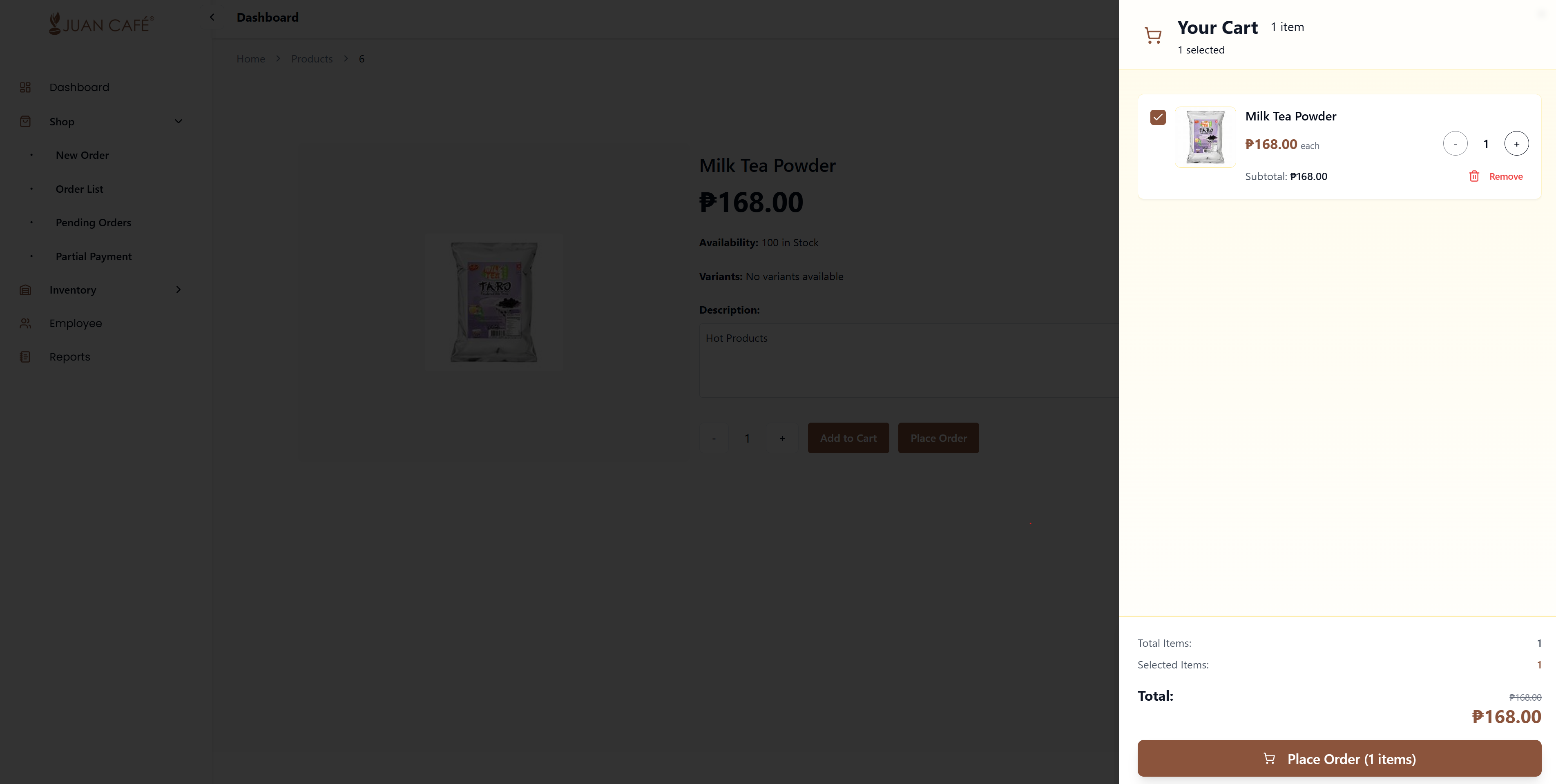
Overview
Your shopping cart stores products you've added while browsing the Shop, ready for checkout and order placement. Here's what you can do in your cart.
What You Can Do
View Cart
See all items you've added to your shopping cart:
- Product Name: Name and description of each item
- Product Image: Visual reference of the product
- Price: Unit price per item
- Quantity: Number of items selected
- Subtotal: Total cost for each product (price × quantity)
- Variant Details: Size, flavor, or other specifications (if applicable)
Update Quantity
Adjust the number of items before placing the order:
- Locate the item in your cart
- Use the quantity selector:
- Click + (plus) button to increase quantity
- Click - (minus) button to decrease quantity
- Or type a number directly into the quantity field
- Subtotal updates automatically for that item
- Total cart amount recalculates immediately
Remove Items
Click Remove if you don't want a product anymore:
- Find the item you want to remove
- Click the X or Remove button next to the item
- Item is removed instantly from your cart
- Cart totals update automatically
Total Price
Check the total cost of your order:
- Subtotal: Sum of all items (before tax)
- Tax/VAT: Tax amount (typically 12% VAT)
- Total Amount: Complete order cost including tax
- Item Count: Total number of items in cart
Cart Icon Badge
- The cart icon in the header shows a badge number
- Badge displays total count of items in cart
- Updates in real-time as you add/remove items
- Click the cart icon to open and review your cart
Opening the Cart
- Click the cart icon in the top navigation header
- Cart sheet or page opens to show all items
- View all items and manage your cart
- Review before proceeding to checkout
Place Order
When you're ready to checkout:
Review Before Ordering
- Review all items in cart carefully
- Verify quantities are correct for your needs
- Check variants are as intended (size, flavor, etc.)
- Review total amount including tax
- Confirm delivery address is correct
Submit Your Order
Click Place Order button to confirm your purchase.
What Happens Next
After you place the order:
Immediate Actions
- Cart contents are submitted as a new order
- Order is created in the system with a unique Order ID
- Your cart is cleared automatically
- You receive an order confirmation notification
Order Processing Flow
- Pending Status: Order appears in the Pending Orders section
- Admin Review: The order waits for approval by the admin
- Admin Approves: Admin reviews and approves the order
- Payment Processing: After approval, you process the payment
- Fulfillment: Order is prepared and shipped to your branch
- Delivery: You receive the products at your branch location
All orders go through an approval process. After you place an order, it will appear in the Pending Orders section for the admin to review and approve before processing and payment.
Before Processing Order
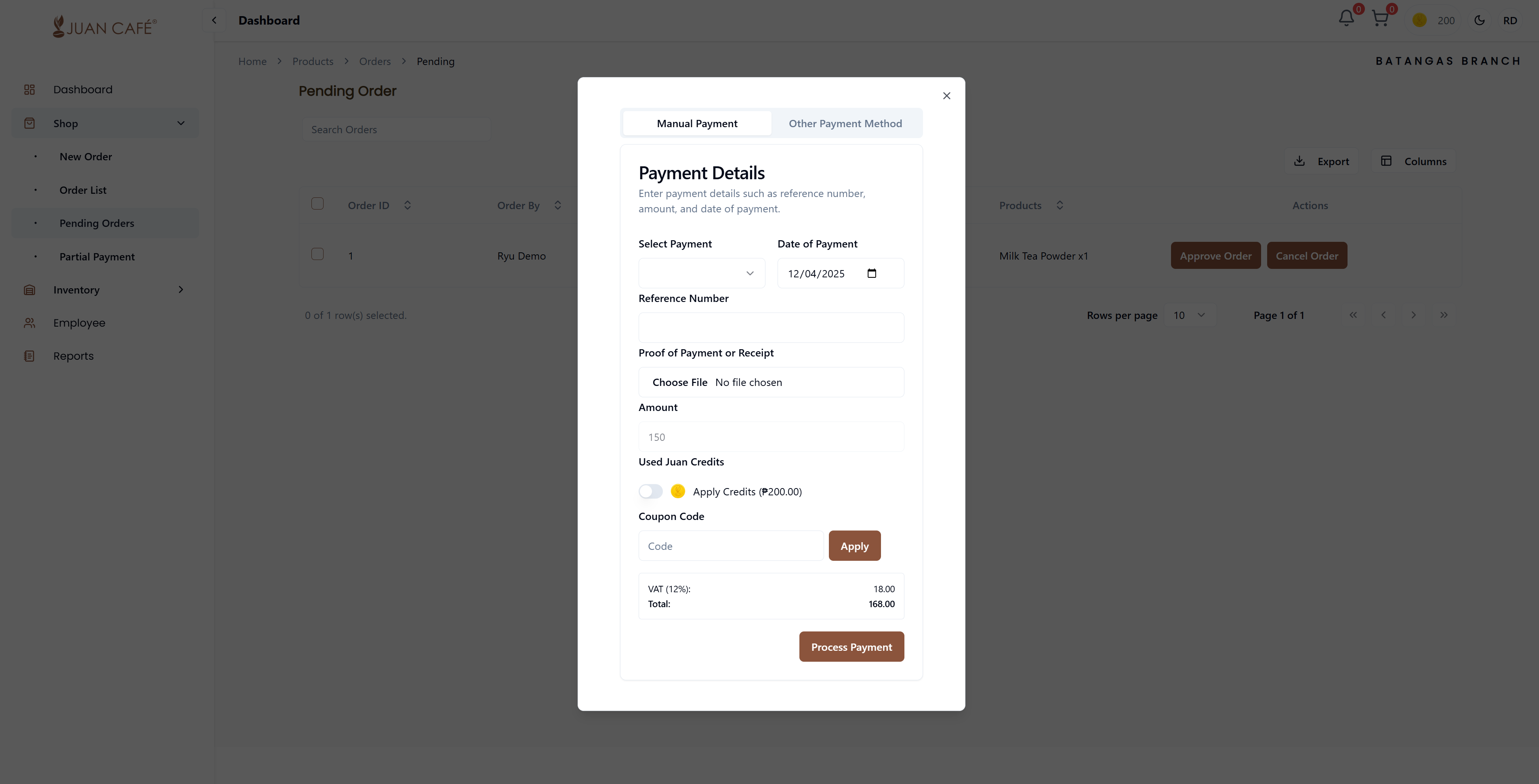
Once your order is approved by the admin, you'll need to process the payment to complete the order. The image above shows the payment processing screen where you can:
- Select your payment method (Manual Payment, Juan Credits, or Online Payment)
- Enter payment details and reference numbers
- Upload proof of payment
- Review the total amount and complete the transaction
Clear Cart
If you want to start over:
- Click Clear Cart button to remove all items at once
- Confirmation dialog appears to prevent accidental clearing
- Click Confirm to empty your entire cart
- All items are removed and you can start fresh
Cart Persistence
Your cart is saved automatically:
- Items remain in cart even if you close the browser
- Cart syncs across browser tabs
- Stored locally on your device
- Persists until you clear cart or place order
Important Notes
Stock Availability
Products added to cart don't reserve stock:
- Stock is only reserved when order is approved
- If stock runs out before approval, you'll be notified
Variant Requirements
Products with variants must have a variant selected:
- Cannot add variant product without choosing specific variant
- Change variant by removing and re-adding item
Price Updates
If prices change after adding to cart:
- Cart shows original price when added
- Actual order uses current price at submission
- You'll see any price differences on order confirmation
Cart Limitations
- Maximum quantity per item may be limited by stock
- Some products may have minimum order quantities
- Variant products must specify variant_id
Cart Notifications
You'll see notifications for:
- Item successfully added to cart
- Quantity limits reached
- Product out of stock
- Cart cleared
- Order successfully placed
Best Practices
Before Adding to Cart
- Check Inventory: Review your current stock levels first
- Plan Ahead: Consider what you'll need for the coming days/weeks
- Verify Products: Ensure you're selecting the correct product and variant
While in Cart
- Double-Check Variants: Verify size, flavor, or other specifications
- Review Quantities: Match quantities against your inventory needs
- Check Prices: Confirm pricing including VAT before ordering
- Delivery Address: Ensure delivery address is correct
Before Placing Order
- Batch Items: Add all needed items before checkout to minimize orders
- Consider Lead Times: Order before running too low on stock
- Review Total: Check final amount including tax
- Verify Cart: Make sure nothing is missing or incorrect
Important Notes
Stock Availability
- Products added to cart don't reserve stock
- Stock is only reserved when order is approved by admin
- If stock runs out before approval, you'll be notified
- Check product availability before adding to cart
Price Updates
- Cart shows current price when items are added
- If prices change, you'll see updated pricing at checkout
- Final order uses current price at time of submission
- Any price differences will be shown on order confirmation
Minimum/Maximum Quantities
- Some products may have minimum order quantities
- Maximum quantity per item may be limited by available stock
- System will notify you if you exceed limits
- Adjust quantities as needed before placing order
Add all items you need to your cart before placing the order to consolidate shipping and simplify order management. This reduces the number of orders to track and streamlines the approval process.
Remember that all orders require admin approval before they can be processed. Plan accordingly and submit orders with enough lead time for approval and delivery.