Reports
Access: Click Reports > Reports in the sidebar menu Role Required: Admin, Manager
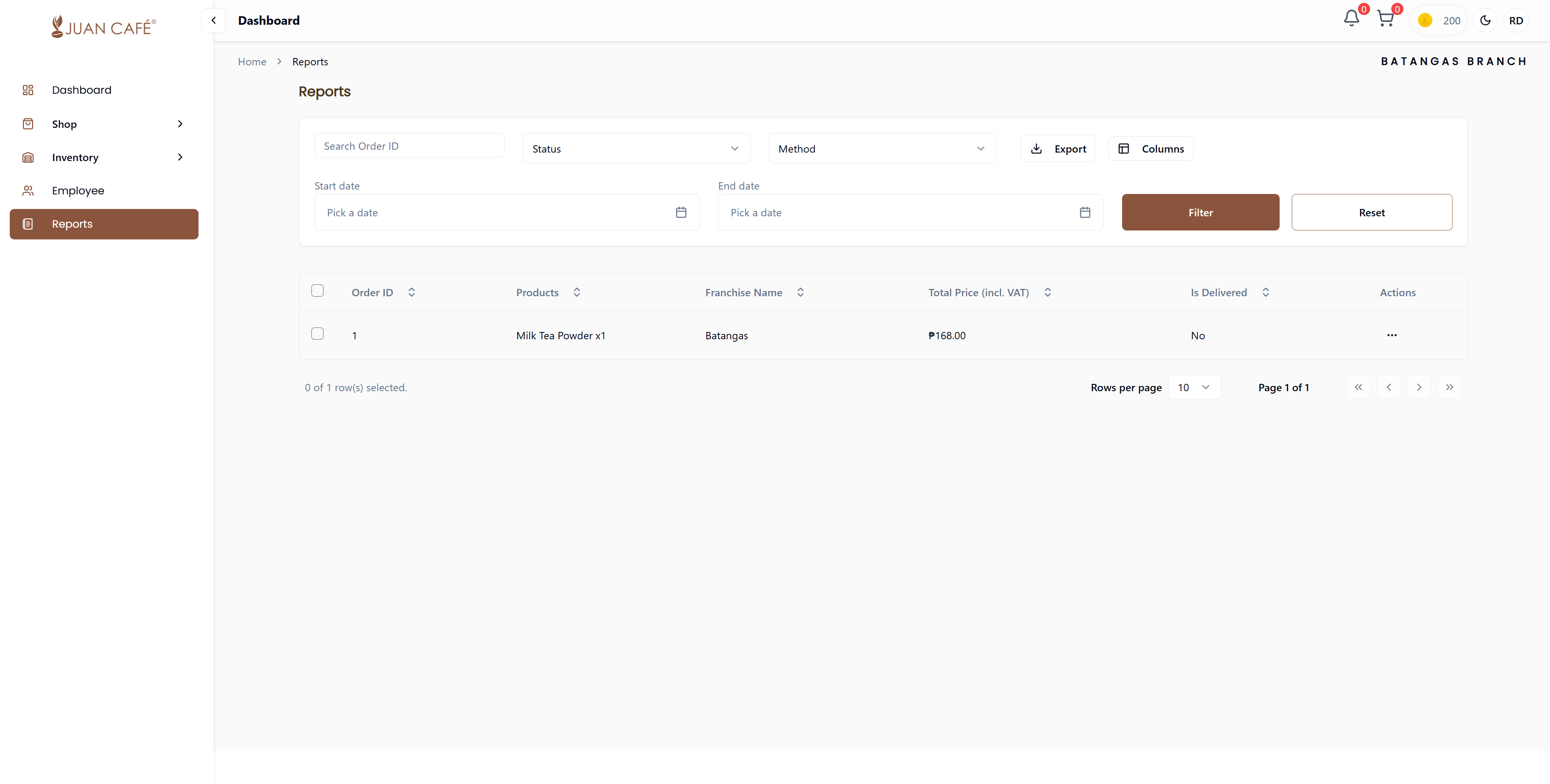
This section helps you view and manage reports for your branch transactions.
Overview
Access comprehensive transaction and invoice reports for your franchise operations. The Reports page makes it easy to track your branch's performance and keep accurate records.
What You Can Do
This section provides detailed financial reporting and transaction history to help you:
Filter Reports
Use filters to find specific reports quickly:
- By Branch Name: Filter reports by your branch (if multiple branches)
- By Status: Filter by delivery or payment status
- By Date Range: Select start and end dates to view reports for specific periods
- Search: Use search bar to find specific orders
View Order Details
See comprehensive information for each order/transaction:
- Order ID: Unique reference number for the transaction
- Product Name: Items included in the order
- Franchise Name: Your branch name
- Total Price: Complete order amount including taxes
- Delivery Status: Current status of the order (Pending, Shipped, Delivered, Canceled)
- Order Date: When the order was placed
- Payment Status: Payment confirmation status
Export Reports
Download reports for:
- Record-keeping and accounting
- Analysis and planning
- Sharing with management
- Tax and compliance purposes
- Financial audits
Transaction Reports Table
Information Displayed
Each report entry shows:
- Order ID: Unique identifier for each transaction
- Product Name: Name and details of products ordered
- Franchise Name: Your branch identifier
- Total Price: Complete transaction amount
- Delivery Status: Current delivery status
- Pending: Awaiting processing
- Processing: Being prepared
- Shipped: On the way
- Delivered: Successfully received
- Canceled: Order canceled
- Order Date: Date and time of order placement
- Payment Status: Payment confirmation status
- Paid: Payment confirmed
- Pending: Awaiting payment
- Failed: Payment unsuccessful
Table Features
- Search: Find transactions by ID, order number, or amount
- Date Filter: View transactions within a specific date range
- Status Filter: Filter by transaction status
- Type Filter: View specific transaction types only
- Sort: Organize by date, amount, or status
- Export: Download reports in CSV format for Excel/accounting software
Row Actions
Click Actions (⋮) for any transaction:
- View Details: See complete transaction information including:
- All associated order items
- Payment details and method
- Billing information
- Transaction timestamps
- Status history
- Download Invoice: Get PDF invoice for the transaction
- Print Invoice: Print directly from browser
Transaction Details View
When viewing a transaction, you'll see:
Transaction Information
- Transaction reference number
- Transaction date and time
- Processing status
- Payment gateway reference (if online payment)
Order Details
- Order number
- List of items
- Quantities and prices
- Subtotal and tax breakdown
- Total amount
Payment Information
- Payment method used
- Payment status
- Amount paid
- Outstanding balance (if any)
- Payment date
Billing Address
- Franchise outlet name
- Complete billing address
- Contact information
Shipping/Delivery
- Delivery address
- Shipping method
- Tracking information (if applicable)
Using Reports
For Accounting
- Export monthly transaction reports
- Import into your accounting software
- Reconcile payments and invoices
- Track accounts payable
For Auditing
- Review transaction history
- Verify payment records
- Check for discrepancies
- Validate invoices
For Analysis
- Identify spending patterns
- Track order frequency
- Monitor payment timelines
- Analyze purchase trends
Export Options
CSV Export
- Includes all visible columns
- Can be opened in Excel or Google Sheets
- Suitable for further analysis or accounting import
PDF Reports
- Formatted transaction summaries
- Individual invoices per transaction
- Official documentation for records
Date Range Exports
- Select custom date range
- Export only relevant transactions
- Useful for monthly/quarterly reports
Best Practices
- Export and backup reports monthly
- Review transaction details regularly
- Keep copies of invoices for tax purposes
- Reconcile with bank statements monthly
- Report any discrepancies immediately
- Use transaction IDs when communicating with support
Regular exports and backups of transaction reports ensure you have complete financial records for accounting and audit purposes.