Purchase Order
How to Process a Purchase Order
-
Go to Purchase Order
Click the Purchase menu, then select Purchase Order.
Click the Create Purchase Order button. -
Fill Out the Order Form
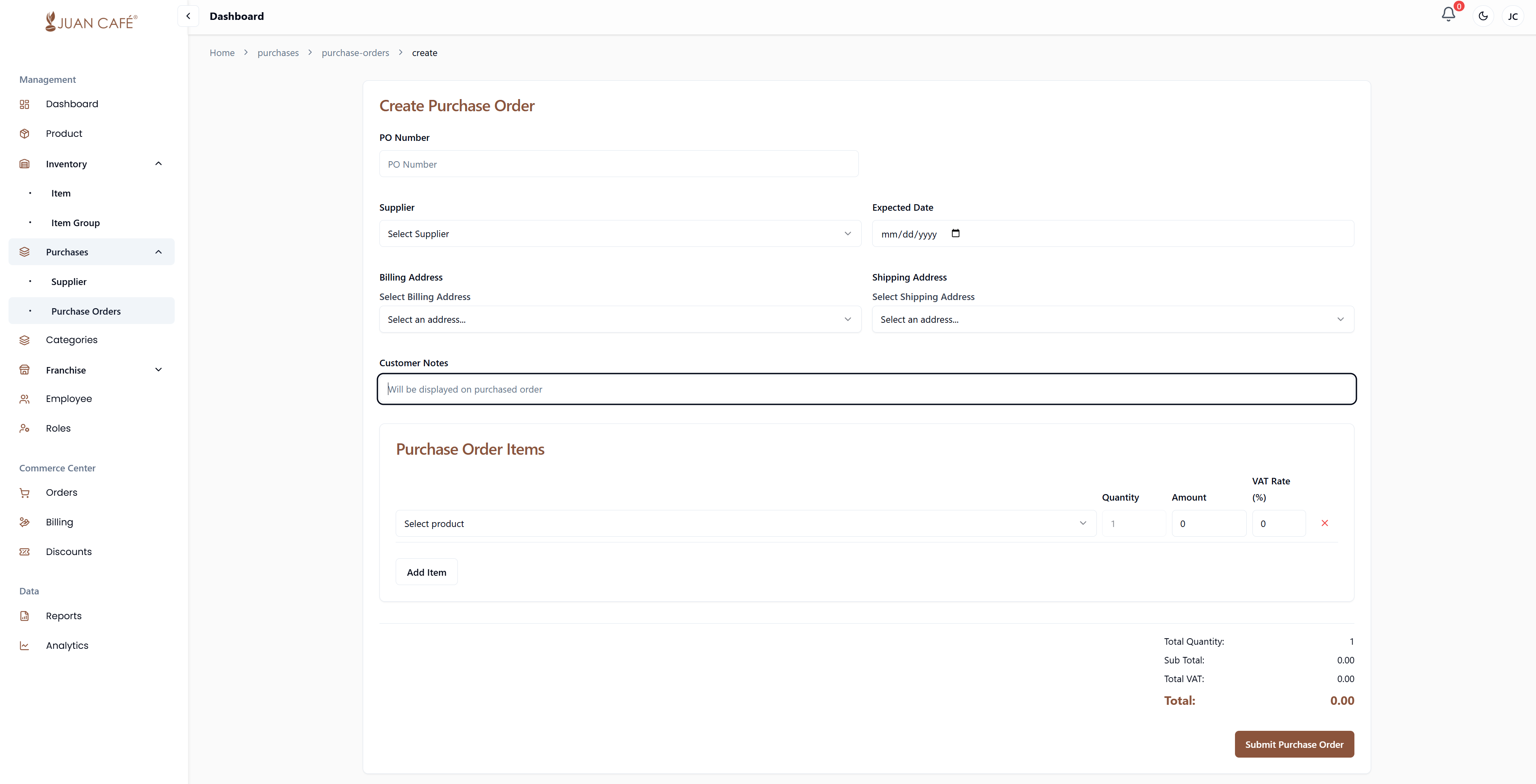
- PO Number: The system may auto-generate this, or you can enter it manually.
- Supplier: Select the supplier from the dropdown list.
- Expected Date: Indicate the expected delivery date.
- Billing Address: Enter the billing address.
- Shipping Address: Enter the shipping address where products will be delivered.
- Notes: Optionally, add notes or special instructions for the supplier.
-
Add Purchase Order Items
- Product: Choose the product from the dropdown list.
- Quantity: Enter the quantity for each product.
- Amount: Specify the amount.
- VAT Rate (%): Enter the applicable VAT rate.
- To add more products, click the Add Item button.
-
Submit and Send the Purchase Order
Click Submit Purchase Order to process and save the order.
After creating the purchase order, you can send the PO to the supplier via email directly from the system. -
Supplier Provides Invoice
Once the supplier receives the PO, they will send you an invoice.
You can upload the supplier's invoice to the system.
The purchase order status will update to Invoiced.
Purchase Received
- Receive Items (Partial or Full)
When items arrive, you can record received quantities for each item.- For partial deliveries, update the received quantity for each item as they arrive.
- For full deliveries, mark all items as received. The system will show the remaining items to be received and indicate if the order is complete.