Sales Reports
Access: Click Reports > Sales Reports in the sidebar menu Role Required: Admin, Manager
Required Daily
Submitting a sales report is required every day. This section is where you submit your daily sales report for your branch.
Track and report your franchise outlet's daily sales performance.
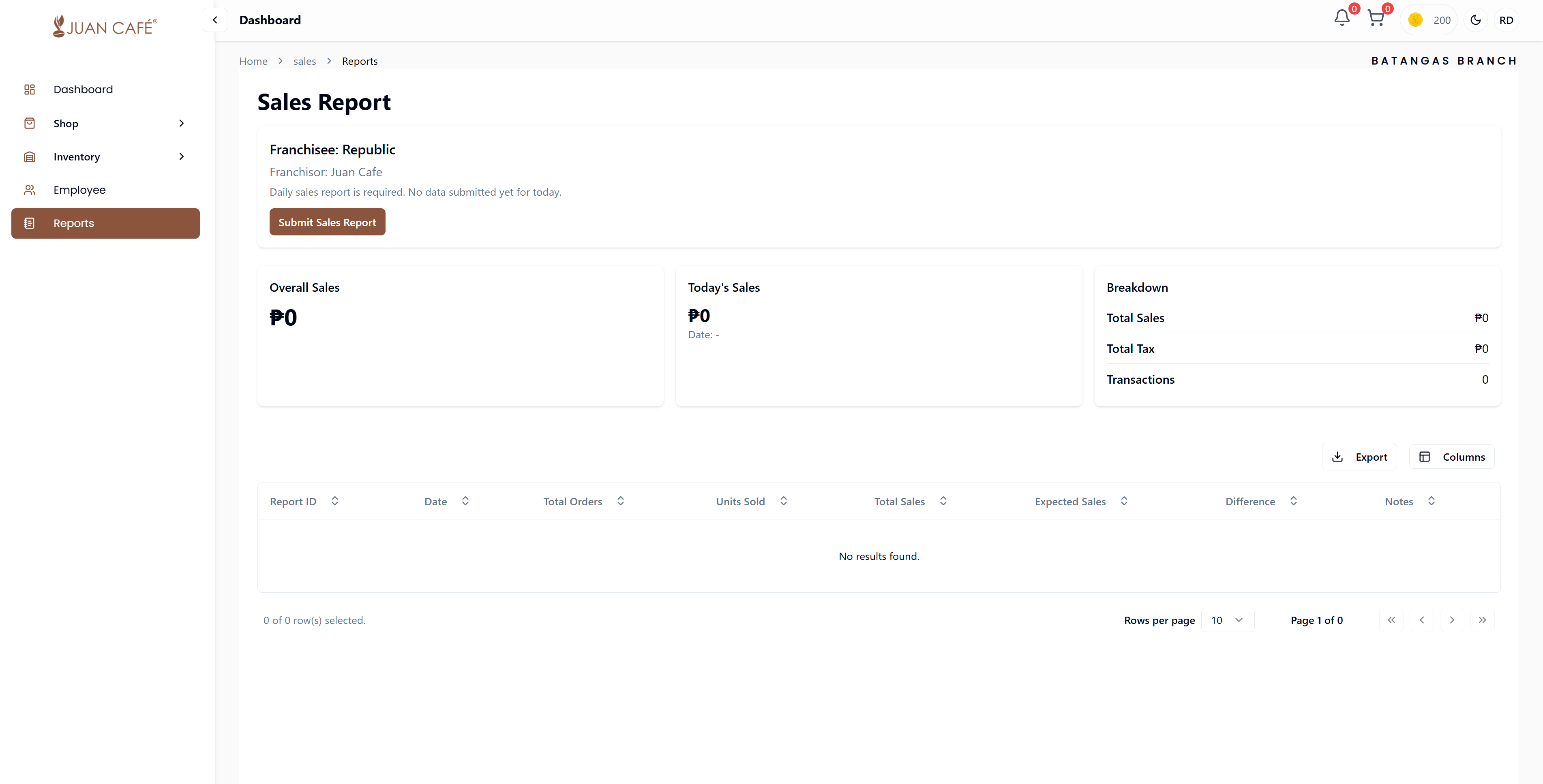
Overview
Here's what you can do:
- Submit Sales Report: Click Submit Sales Report to record your daily sales
- View Overall Sales: See the total sales amount for your branch
- Today's Sales: Check the sales made for the current day
- Breakdown: View details like total sales, total tax, and number of transactions
- Report List: See submitted reports with comprehensive details
- Export Reports: Download your sales reports for record-keeping
This page ensures accurate daily reporting and helps track your branch's performance.
Dashboard Metrics
Overall Sales
View the cumulative total sales for your branch:
- Total Revenue: Complete sales amount across all time
- Performance Tracking: Monitor overall branch performance
Today's Sales
Check current day performance:
- Daily Revenue: Sales made for today
- Real-time Updates: See sales as they're reported
- Quick Reference: Instant view of today's performance
Sales Breakdown
Detailed financial information:
- Total Sales: Gross revenue before taxes
- Total Tax: VAT and other taxes collected
- Number of Transactions: Total count of sales made
- Differences: Variance between expected and actual sales
Sales Table Features
View all your submitted sales reports in the table:
Information Displayed
- Report ID: Unique identifier for each sales report
- Report Date: Date the sales occurred
- Total Orders: Number of transactions/orders
- Units Sold: Total number of items sold
- Total Sales: Complete revenue amount
- Difference: Variance between expected and actual sales (shows if over/under target)
- Report Status: Pending, Approved, or Rejected
- Submission Date: When the report was submitted
Table Actions
- Sort: Click column headers to sort by any metric
- Search: Find reports by date or amount
- Filter by Status: View only Pending, Approved, or Rejected reports
- Date Range: Filter reports by date range
Row Actions
Click Actions (⋮) for each report:
- View Details: See complete report with product breakdown
- Edit Report: Modify report (only if status is Pending)
- Delete Report: Remove report (only if status is Pending)
Sales Report Status
Pending
- Report submitted but not yet reviewed
- Can still edit or delete the report
- Waiting for admin approval
Approved
- Report has been reviewed and accepted
- Data is locked (cannot edit)
- Counts toward your analytics and performance metrics
- May affect credit points or incentives
Rejected
- Report was reviewed but had issues
- Check rejection notes for reason
- Can submit a corrected report for the same date
- Does not count toward metrics
Sales Analytics
From your sales reports, you can track:
- Daily sales trends
- Product performance over time
- Sales vs. targets (achievement rate)
- Peak sales days
- Best-selling product categories
- Revenue growth month-over-month
Best Practices
- Submit sales reports daily at close of business
- Ensure accuracy - reports affect inventory projections
- Include notes for unusual days (holidays, events, promotions)
- Keep receipts and documentation as backup
- Review variance regularly to identify trends
- Address negative variances promptly
Performance Tracking
Approved sales reports contribute to your franchise performance metrics and may affect incentives and credit allocations.