Inventory
Access: Click Inventory > Items in the sidebar menu
View a complete list of your product inventory and streamline stock control. Monitor and manage all inventory items in your franchise outlet.
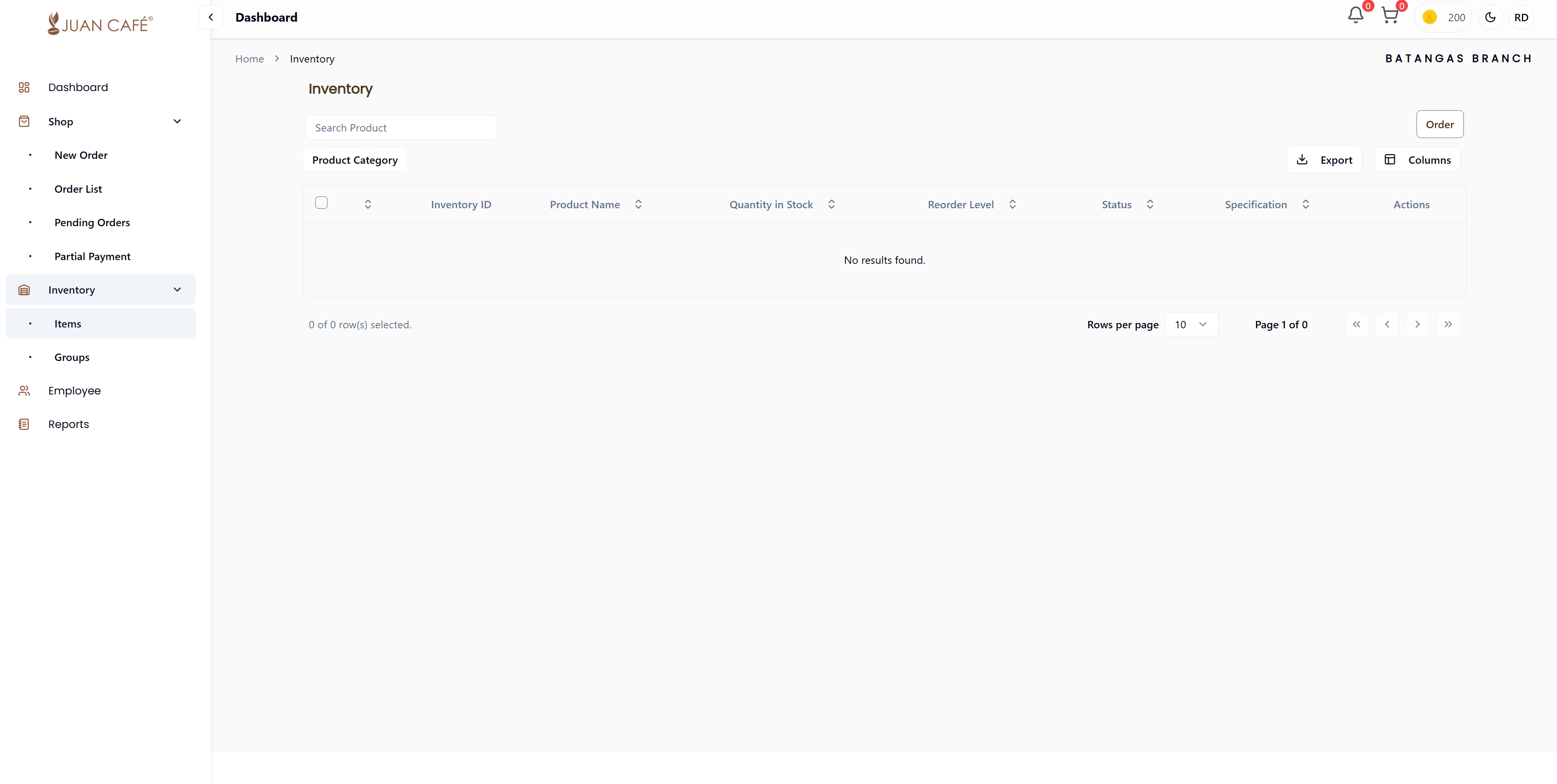
Overview
This is where you track what products you have in stock. The inventory system helps you maintain optimal stock levels and ensures product availability for your branch operations.
Key Features
Filter Products by Category
Easily find products by selecting their category:
- Beverages: Coffee, tea, milk tea ingredients
- Raw Materials: Base ingredients and supplies
- Equipment: Tools and machines
- Supplies: Cups, packaging, utensils
- Other: Miscellaneous items
Set Restock Levels
Establish reorder levels for each product to maintain optimal stock availability:
- Reorder Level: Minimum quantity before low stock alert
- Automatic Alerts: Get notified when stock reaches reorder level
- Prevent Stockouts: Ensure continuous product availability
Monitor Stock Turnover
Track how quickly your products are being sold and replaced:
- Efficient Turnover: Indicates healthy inventory management
- Avoid Excess Stock: Prevents tying up cash in inventory
- Optimize Ordering: Order based on actual usage patterns
Export Data
Download your inventory list for:
- Record-keeping and reporting
- Analysis and planning
- Sharing with management
- Backup purposes
Inventory Table Features
- Current Stock Levels: See exact quantities for each item
- Status Indicators:
- In Stock (green) - Adequate quantity available
- Low Stock (yellow warning) - Below reorder level
- Out of Stock (red alert) - No items available
- Search Function: Quickly find items by name or product ID
- Filter Options:
- By category (main and sub-categories)
- By stock status (in stock, low stock, out of stock)
- By product type and variants
- Sort Capabilities: Sort by product name, quantity, category, or status
- Export Data: Export inventory list to CSV format
Information Displayed
Each inventory item shows:
- Product ID: Unique identifier for the product
- Product Name: Full name and description
- Current Quantity: Available stock amount
- Category: Main and product category classification
- Status: Active (in use) or Inactive (not in use)
- Reorder Level: Minimum stock threshold for alerts
- Specifications: Product details (size, variant, etc.)
- Last Updated: Date of last inventory change
Row Actions
Click the three-dot menu (⋮) for each inventory item to:
- View Details: See complete product information and history
- Edit Details: Update quantity or product information
- Adjust Stock: Add or remove quantities with reason
- Delete Item: Remove from inventory (with confirmation)
Best Practices
- Regular Monitoring: Check inventory levels daily or weekly
- Set Realistic Reorder Levels: Based on actual usage and delivery times
- Track Turnover: Monitor which products move quickly vs slowly
- Keep Records: Export inventory data regularly for backup
- Update Promptly: Adjust quantities immediately after receiving deliveries
- Review Categories: Ensure products are properly categorized
Use the color-coded status indicators to quickly identify which items need restocking. Yellow and red alerts help you prioritize reordering.
Efficient inventory turnover indicates that you're not holding excess stock, which can impact cash flow. Monitor this metric to optimize your ordering patterns.