Adding to Cart
Access: Click Shop > Shop in the sidebar menu, then select products
Learn how to add products to your shopping cart for ordering supplies for your branch.
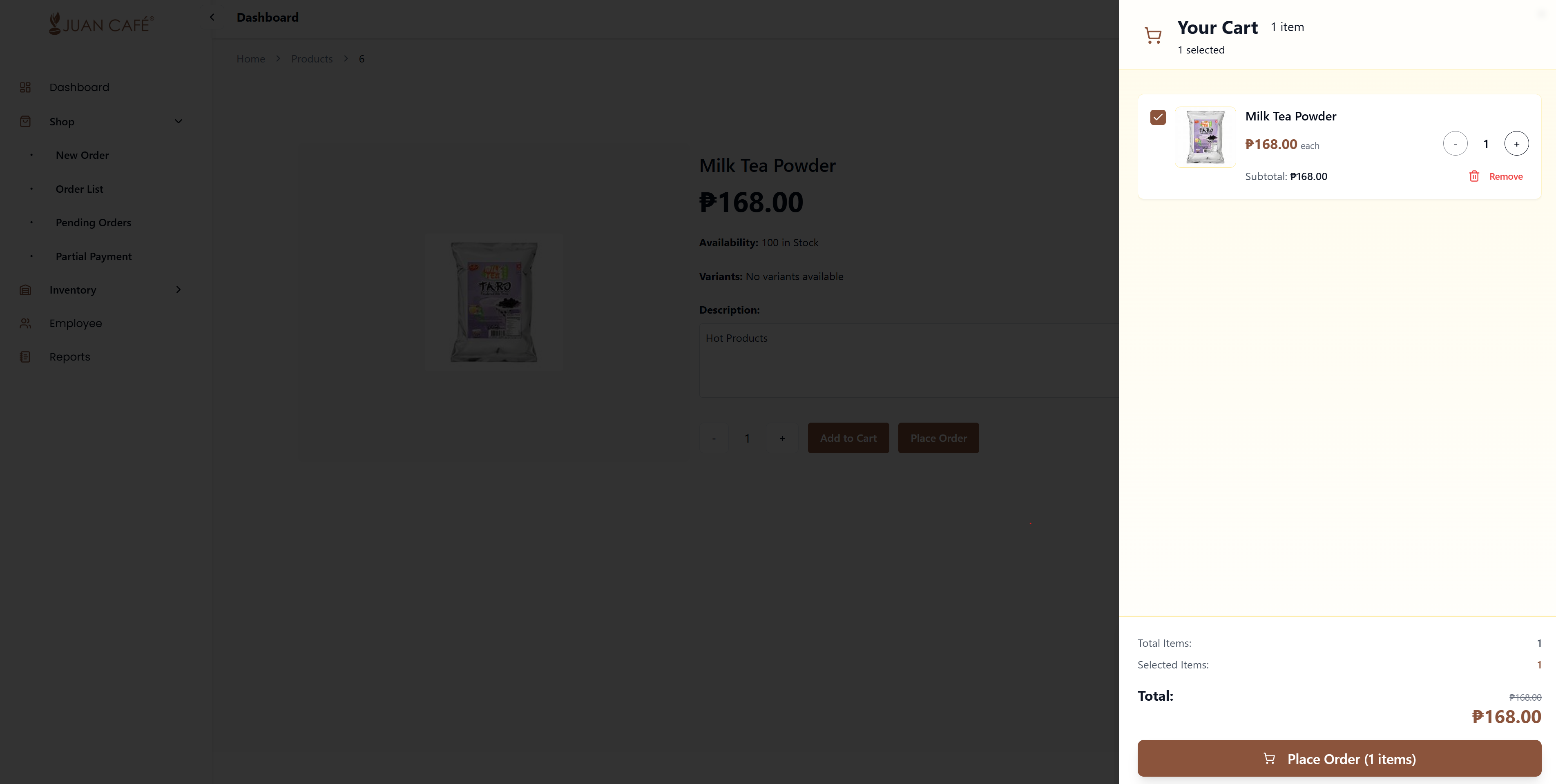
Overview
This section explains how to add items to your shopping cart. Once items are in your cart, you can review them, adjust quantities, and place your order.
How to Add Products to Cart
Step-by-Step Process
-
Navigate to Shop
- Click Shop > Shop in the sidebar menu
- Browse the available products displayed
-
Find Your Product
- Browse products by scrolling through the product grid
- Use the search bar to find specific items quickly
- Filter by category to narrow down products
-
Select Product Details
- Click on a product to view its details
- Check the price, description, and specifications
- Review stock availability
- If the product has variants (sizes, flavors, etc.), select your preferred variant
-
Choose Quantity
- Select the quantity you want to order
- Use the quantity selector (+ and - buttons)
- Or type the quantity directly
-
Click Add to Cart
- Click the Add to Cart or Order button
- A confirmation message will appear
- The product is added to your shopping cart
-
Verify Addition
- The cart icon in the header will update with the total item count
- You'll see a success notification
- You can continue shopping or proceed to checkout
Product Variants
Some products come with different variants such as:
- Size: Small, Medium, Large, 22oz, etc.
- Flavor: Vanilla, Chocolate, Caramel, etc.
- Type: Different varieties or specifications
- Color: For products with color options
Selecting Variants
- Products with variants must have a variant selected before adding to cart
- Click on the variant option to select it
- The price may change based on the selected variant
- Make sure you select the correct variant before adding
After Adding to Cart
Once you add items to your cart:
Cart Updates
- Cart Icon Badge: Shows total number of items in cart
- Cart Count: Updates in real-time
- Notification: Success message confirms addition
Continue Shopping
- Stay on the shop page to add more items
- Navigate to different categories
- Search for additional products
- Add multiple products before checkout
View Cart
- Click the cart icon in the header to view your cart
- Review all added items
- Adjust quantities if needed
- Remove items you don't want
- Proceed to checkout when ready
Important Notes
Stock Availability
- Check Before Adding: Verify product is in stock
- Out of Stock: Items out of stock cannot be added to cart
- Low Stock: Warning may appear for low stock items
- Stock Not Reserved: Adding to cart doesn't reserve stock until order is approved
Pricing
- Prices Include VAT: All displayed prices include applicable taxes
- VAT Rate: Typically 12% in the Philippines
- Price Updates: Prices may change between adding to cart and checkout
- Total Calculation: Cart automatically calculates subtotal and total
Cart Persistence
- Auto-Save: Your cart is saved automatically
- Browser Closing: Cart persists even if you close the browser
- Multiple Tabs: Cart syncs across browser tabs
- Device Storage: Stored locally on your device
- Login Required: Cart is tied to your account
Variant Requirements
- Must Select: Products with variants require selection
- Cannot Add Without: System won't allow adding without variant selection
- Change Variant: Remove item and re-add to change variant
- Verify Selection: Double-check variant before adding
Best Practices
Before Adding to Cart
- Check Inventory Needs: Review your current stock levels first
- Plan Orders: Consider what you'll need for upcoming days/weeks
- Verify Product: Ensure you're selecting the correct product
- Read Descriptions: Review product specifications carefully
While Adding Items
- Batch Orders: Add all needed items before checkout
- Correct Variants: Verify size, flavor, and specifications
- Appropriate Quantities: Order quantities based on actual needs
- Compare Products: Check different options before deciding
After Adding
- Review Cart: Check cart before finalizing order
- Verify Totals: Confirm pricing and quantities
- Check Delivery Address: Ensure delivery information is correct
- Place Order: Complete checkout when ready
Troubleshooting
Can't Add to Cart?
- Stock Issue: Product may be out of stock
- Variant Not Selected: Choose a variant for variant products
- Login Required: Make sure you're logged in
- System Error: Refresh page and try again
Wrong Item Added?
- Remove Item: Click remove button in cart
- Correct Item: Find and add the correct product
- Verify Before Checkout: Always review cart before ordering
Cart Not Updating?
- Refresh Page: Reload the browser
- Clear Cache: Clear browser cache if needed
- Check Connection: Verify internet connection
- Contact Support: If issue persists, contact support
Quick Tips
- Use Search: Find products faster with the search bar
- Filter Categories: Narrow down products by category
- Check Cart Often: Review cart icon badge to track items
- Save for Later: Items stay in cart until you're ready to order
- Batch Shopping: Add everything at once for efficient ordering
Your cart is saved automatically and will remain even if you close the browser. This allows you to add items over time and checkout when ready.
Products with variants (like different sizes or flavors) require you to select a variant before adding to cart. Make sure to choose the correct specification for your needs.
Adding items to cart does not reserve stock. Stock is only reserved when your order is approved by the admin. Check availability before ordering to avoid issues.