Pending Orders
Access: Click Shop > Pending Orders in the sidebar menu Role Required: Admin Only
This section is where you review and approve orders before they are processed. Only Admin users can approve or cancel orders.
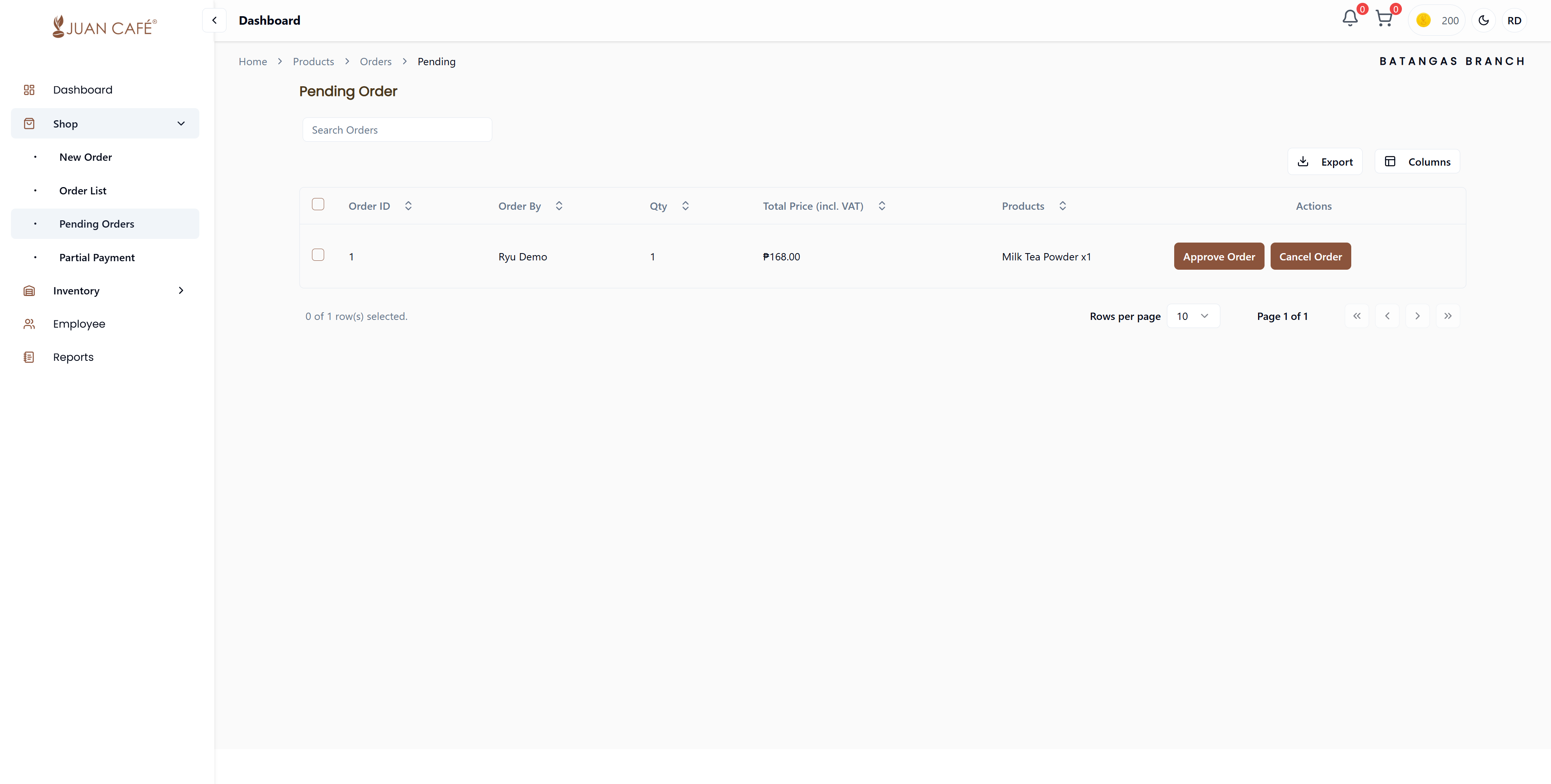
Overview
This page gives you control to approve or cancel orders, ensuring only valid requests are processed. All submitted orders awaiting approval are listed here.
What You Can See
Order Information Displayed
Each pending order shows:
- Order ID: Unique reference number
- Placed By: Name of the employee who placed the order
- Quantity: Total number of items in the order
- Total Price: Complete order amount
- Product Name: Details of products ordered
How to Approve or Cancel Orders
Search Orders
Use the search bar to quickly find specific orders by Order ID, product name, or employee name.
Approve Order
To approve a pending order:
- Locate the order in the Pending Orders table
- Click Approve Order button for that order
- Review order details carefully:
- Product list and quantities
- Total amount
- Who placed the order
- Delivery requirements
- Confirm the approval
Once approved:
- Order moves to processing stage
- Employee who placed the order is notified
- Order appears in the Orders list with "Approved" status
- Payment processing can begin
Cancel Order
To cancel a pending order:
- Locate the order in the Pending Orders table
- Click Cancel Order button for that order
- Provide a reason for cancellation (optional but recommended)
- Confirm the cancellation
Once canceled:
- Order is removed from pending queue
- Employee who placed the order is notified
- Order appears in Orders list with "Canceled" status
- No payment processing occurs
Table Features
- Search: Find orders quickly using the search bar
- Sort: Click column headers to sort by different criteria
- Filter: Filter by date range or order amount
- Pagination: Navigate through multiple pages of pending orders
Best Practices
- Review Carefully: Always verify product details and quantities before approving
- Timely Approval: Process pending orders promptly to avoid delays in delivery
- Clear Communication: Provide clear reasons when canceling orders
- Check Inventory: Ensure you actually need the items before approving
- Monitor Budget: Keep track of total spending on approved orders
For routine restocking orders, you can approve multiple orders efficiently by reviewing them in sequence. However, always verify quantities and totals before confirming.
Once you approve or cancel an order, the action cannot be easily reversed. Always double-check before confirming your decision.